
Getting Started with NotebookLM for Work, Research, and a Bit of Fun
Practical guide to NotebookLM: how it works, how to use your sources, ask better questions, and turn research into useful outputs.
February 18, 2026
Have you ever heard of NotebookLM? If you haven’t, I don’t blame you. There is a huge number of AI productivity tools out there right now, and that list continues to grow every day. But this one is a little different.
In this article, I’ll cover what NotebookLM is, how you can leverage AI-powered research, how to get started with this particular tool, and what exciting functions it offers.
What is NotebookLM?
So, first of all, what is NotebookLM? It’s AI-powered research software developed by Google. There are so many general-purpose AI chat tools out there right now, but what sets NotebookLM apart is that it’s designed to work strictly with the materials you provide. Users upload their own documents, such as PDFs or web pages, and then use it to ask questions or generate summaries.
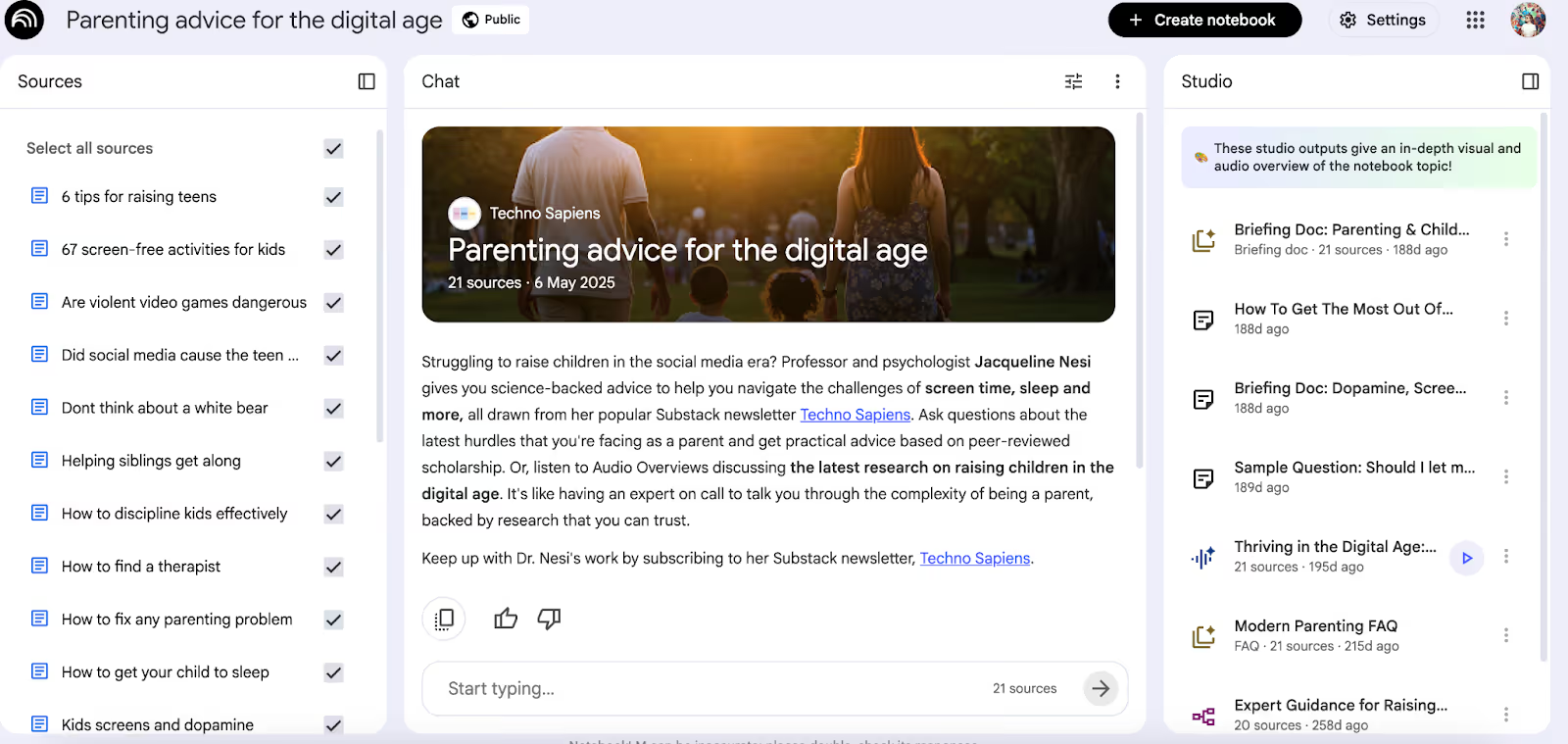
Here’s a visual example. This is a featured public notebook by Techno Sapiens. You can see how sources, summaries, and questions can be organised around a specific topic inside NotebookLM.
NotebookLM is especially useful for research and learning because its main purpose is understanding rather than information retrieval. Instead of pulling in outside knowledge or generating answers based on general training data, it stays grounded in your sources.
I use Notebook as a synthesis engine for enterprise discovery. When we're modernizing legacy systems, I'll upload a hundred pages of technical specs and stakeholder transcripts to find bottlenecks across departments without the AI hallucinating outside that corpus.
{{Kuldeep Kundal}}
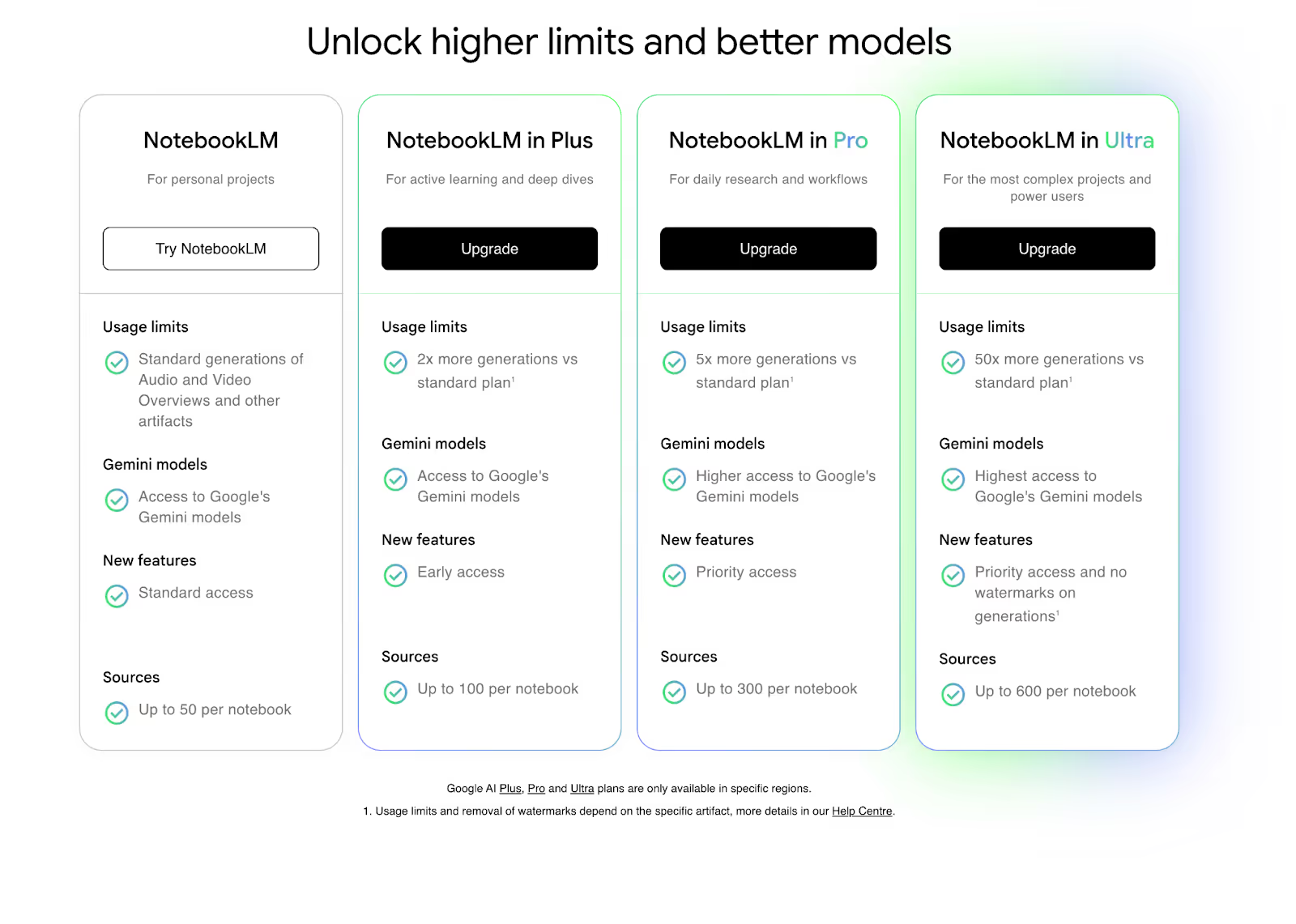
The basic version of NotebookLM is free to use. There are also several paid plans. Please bear in mind that not all of them are available in every country, and prices are region-dependent too.
What you can do with NotebookLM
Here’s a list of the most common uses for NotebookLM, for both professional and personal tasks.
Ask questions based on your own content
One of the most typical ways people use NotebookLM is to ask questions directly against their own documents. Unlike other AI tools, which often drift into generic explanations (or even worse, hallucinations!) NotebookLM works within a fixed set of sources, which means its answers stay tied to the material you upload.
I use the source-based Q&A most due to the citations. I'm an enterprise consultant and need to verify everything. We could click a response and immediately jump to the client's PDF held to that paragraph to find where you found this from, and it massively boosts the credibility of our team as well as our speed.
{{Kuldeep Kundal}}
Summarise and understand complex information
Another very common use is to break down complex materials into something more easily digestible. Even if you upload a variety of sources and difficult material, NotebookLM can summarise all of it concisely and highlight the most important ideas.
NotebookLM is really well-suited to working with longer texts or research-heavy topics where maintaining context is important. It doesn’t get confused as easily or forget things the way ChatGPT would, for example.
It incredibly improved the "context drift" problem I have with standard LLMs. In a normal chat interface, the AI loses hold of the thread in the original document the further you go into the conversation. NotebookLM keeping the sources anchored is huge and helps especially with what we work on customer-wise.
{{Kuldeep Kundal}}
Connect ideas across multiple documents
It can take care of a really difficult task: multi-document cross-referencing. While most of the tools do well feed them one file as the input, this one is awesome at finding contradictions between different sources, like one page has one thing, and on the other page, the transcript of the CTO interview says something different.
{{Kuldeep Kundal}}
NotebookLM’s ability to analyse many documents at once and compare them to each other, whether to find contradictions or consistency, is yet another feature that makes it useful for projects that rely on several sources at the same time. While other AI tools can also work with several files at once, NotebookLM lets you upload up to 600 ones, depending on your plan.
Compared to ChatGPT Projects, which is limited to 20 files, NotebookLM handles a much larger volume of documents. It is also much more flexible because I can toggle specific sources on or off for each rendering, allowing me to mix ancient sources with modern notes easily.
{{Ryan Hunt}}
Getting started with NotebookLM
NotebookLM is quite intuitive to use and deliberately straightforward. Follow along to get started!
Creating your first notebook
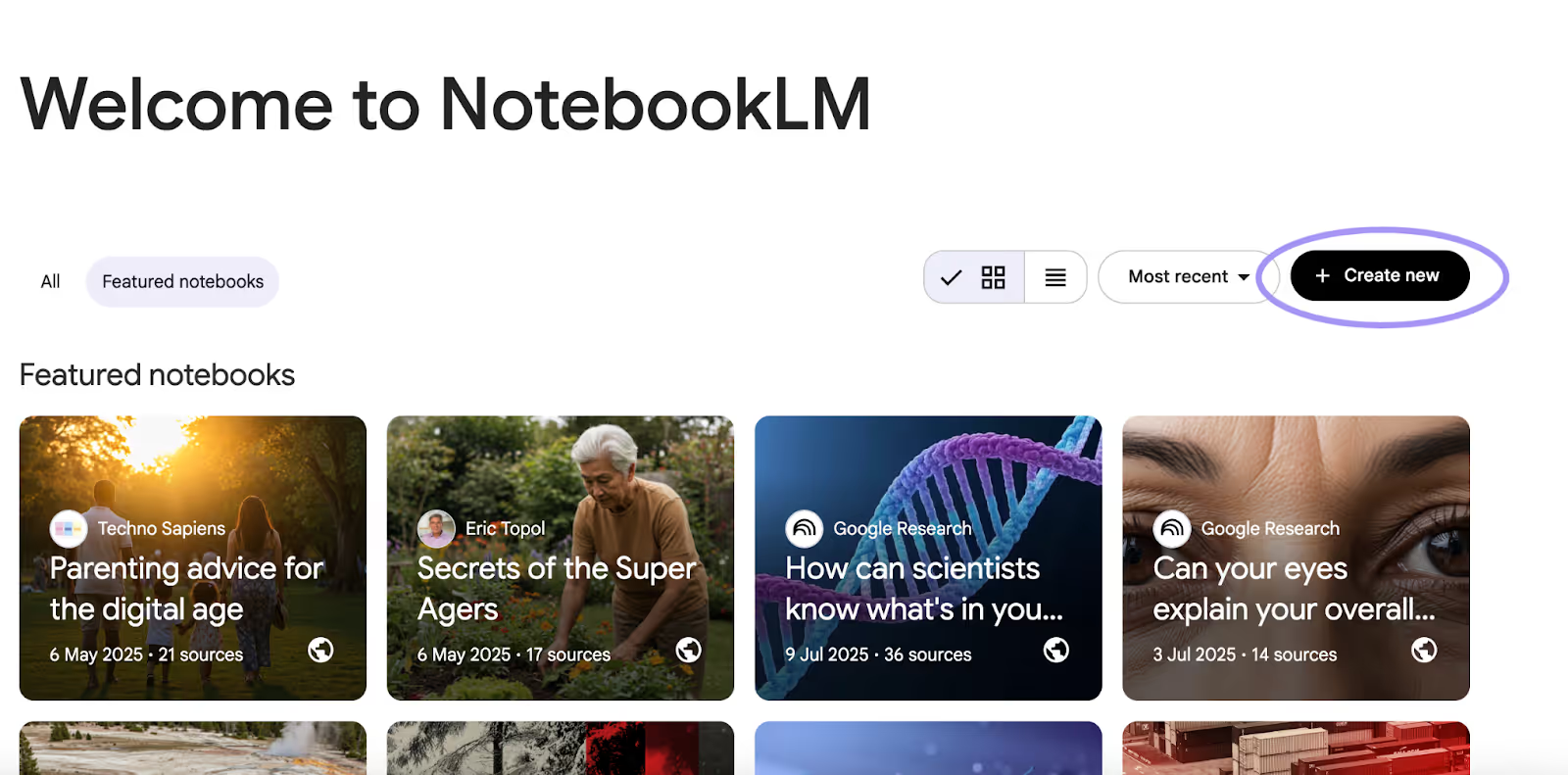
If you already have a Google account, you don’t need to register. Simply go to the NotebookLM website and log in. You'll see your dashboard with featured notebooks and an option to create your own.
Uploading sources
The next step is uploading your sources. Since one of our experts, Ryan Hunt, is an astrologer who uses NotebookLM with ancient texts and personal writing, I decided to continue in the same vein and start a notebook using a few unconventional sources myself.
For the purposes of this article, I’m going to upload several files in different formats: my natal chart as a Microsoft Word document, my numerology chart as plain text, and my human design chart as a PDF file. Since NotebookLM is a Google product, you can also upload anything that’s on your Google Drive, which includes Google Docs and Sheets.
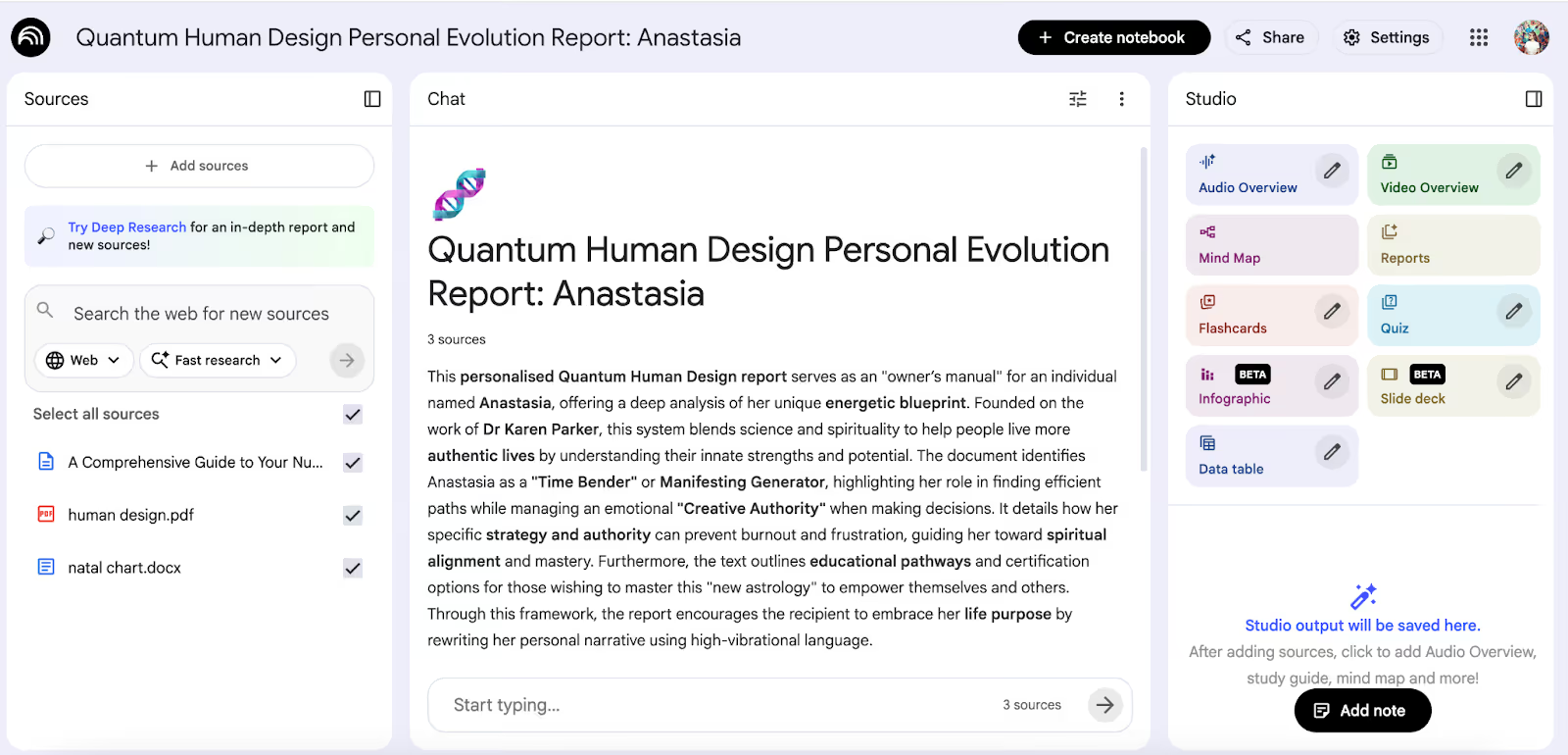
On the left, you can see all the sources of information I used which NotebookLM will use to answer my questions or generate summaries. The Chat section in the middle is where you interact with the tool. You can see a brief AI summary of my sources and a field where you can ask any questions. The Studio section allows you to transform your sources into structured output.
How notebooks help organise information
You can transform your source information into other kinds of formats or organised results and use the same materials in different ways. For example, you can turn your notes into flashcards, summaries, audio overviews, or even quizzes. This is what makes NotebookLM so broadly applicable for professional, academic, and creative contexts.
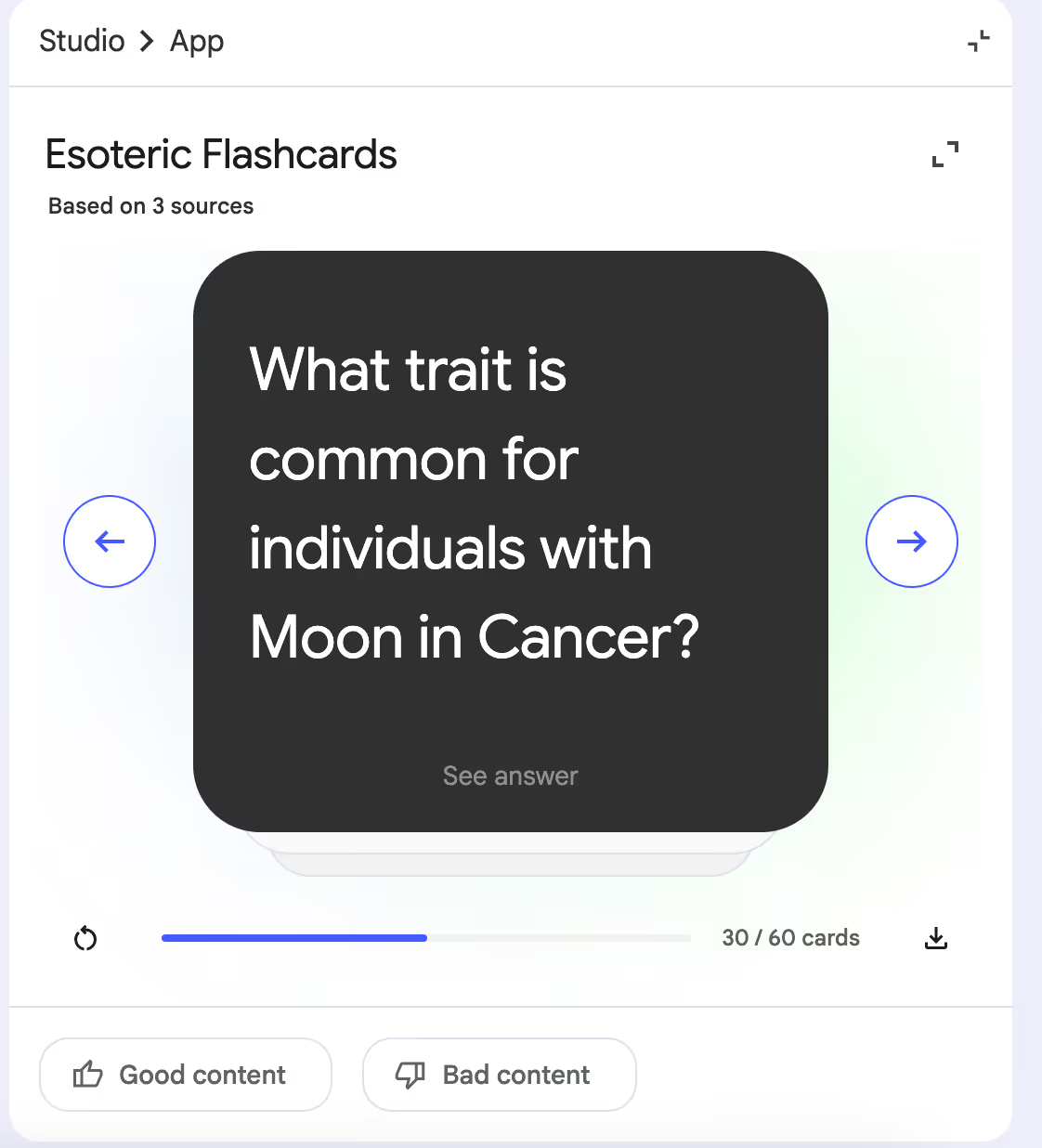
To illustrate this, I clicked on “Flashcards,” and NotebookLM immediately generated 60 cards with questions referencing the sources I uploaded — I can imagine this feature would come in very handy for students who are revising for their exams!
How NotebookLM uses sources
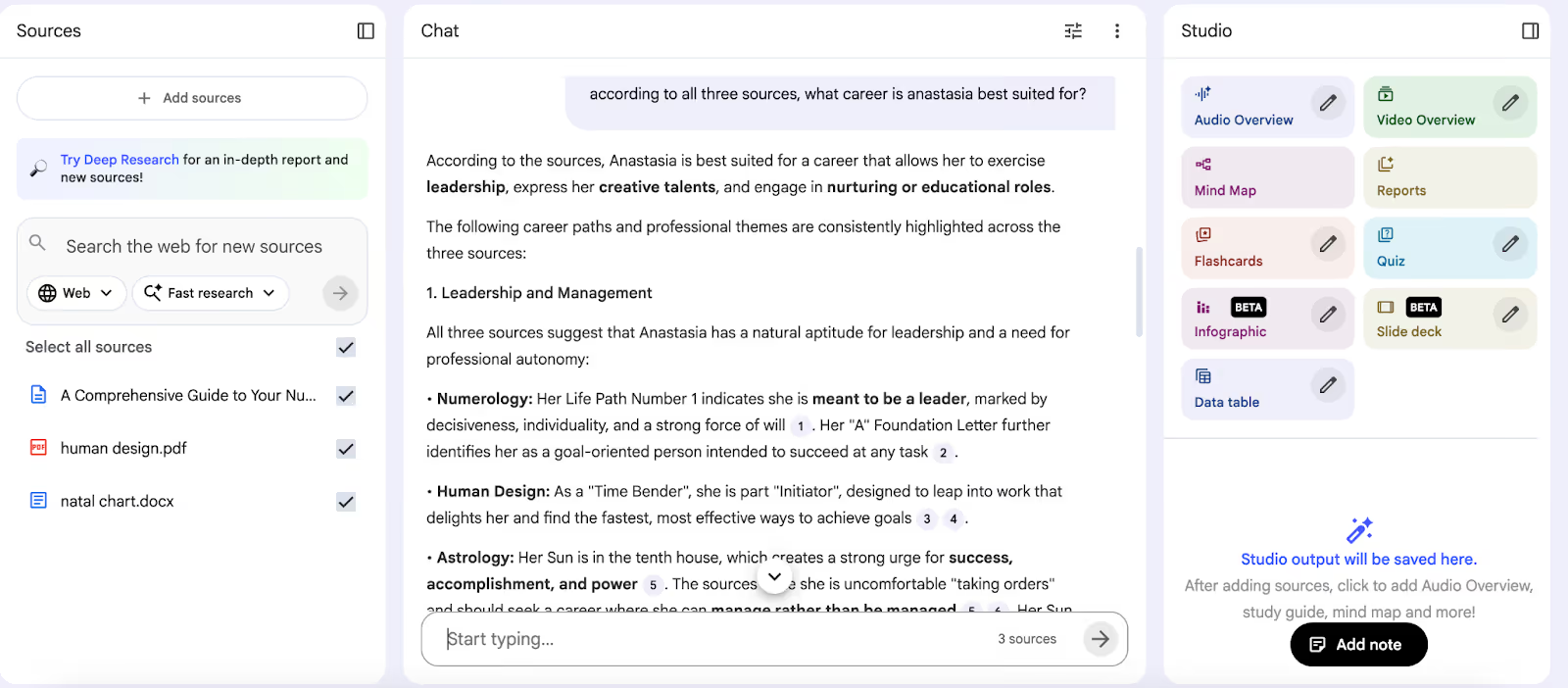
NotebookLM works entirely within the set of sources you give it, which means what you upload matters more than people often expect, especially if they’ve used generative AI apps before. All the answers are designed to stay closely tied to your documents. To make this clear, NotebookLM includes small numbered references next to specific statements, which link back to the exact passages they’re based on. This makes it easier to see how an answer was formed, check details quickly, and return to the original source. I’m going to include an example of this in the next section.
Given all that, NotebookLM works best when you pick sources that are focused and aligned with the topic you’re researching.
[The biggest mistake people make is] expecting it to know things it hasn't been 'fed.' Users who hurt themselves by using it as a general search tool instead of understanding that its intelligence is totally dependent on the detail and care of the sources to which they 'feed' it.
{{Kuldeep Kundal}}
How to use NotebookLM day to day
Let’s look at some basic everyday functions of NotebookLM.
Asking questions
Let’s go back to my esoteric notebook and ask it a random question to see how it interacts with all the source information. As you can see, if you need to check where NotebookLM got its data from, you can click on a numbered reference.
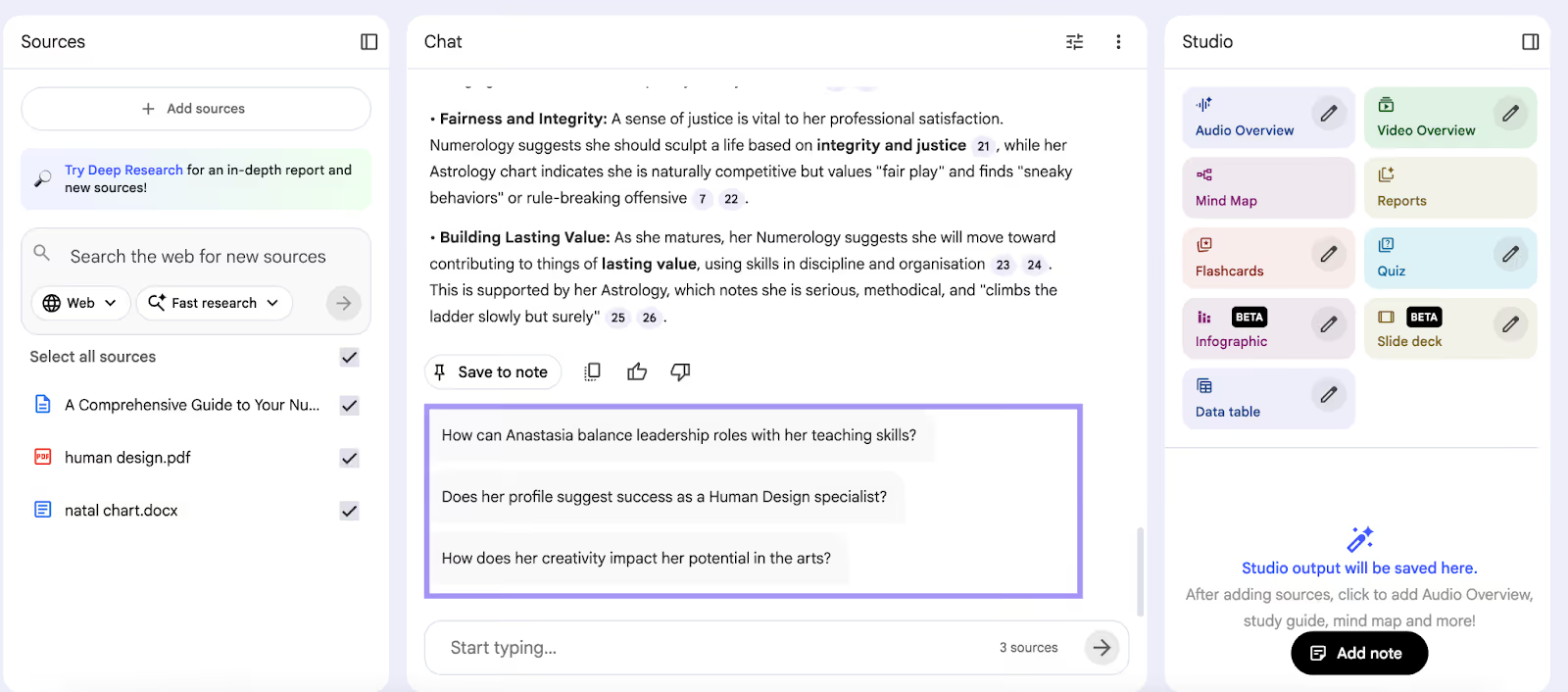
If you’re unsure what to ask, check out the AI-suggested questions, which I highlighted in my example below. These prompts are generated directly from your uploaded sources and update as your notebook grows.
Saving key answers and notes
NotebookLM lets you save the most important information so that you can revisit it at a later date without having to scroll through your entire chat history. When a response is especially useful, you can save it to a note, where it’s separated from the chat and stored as part of the notebook. You can also add your own note with any thoughts or ideas to revisit later. Over time, this helps you build a collection of highlighted insights. You can also convert your notes into sources, and NotebookLM will use them in its output.
Revisiting and building on past chats
Everything you do on NotebookLM, like your notes, your summaries, and the chat itself, is saved within the same notebook. This means you can revisit it at any time and explore new angles without losing context. Unlike other general-purpose AI chatbots, it doesn’t forget the information you provide.
Audio overviews and alternative ways to learn
There’s much contradictory information about different learning styles online, but the general consensus seems to be that as many as 30% of people are auditory learners, meaning they absorb information better when they hear it. This is where NotebookLM really shines with its audio features.
Turning sources into audio conversations
NotebookLM doesn’t just read your sources to you out loud. Instead, it turns them into a spoken, conversational-style summary that walks through the key ideas and patterns. So, this is useful not just to auditory learners, but also to anyone who wants to create voiceovers or presentations.
[The feature I use the most often is] Audio Overviews (audio conversions) by far. I use the audio generated by NotebookLM as the foundation for my content. I then use Midjourney to create visuals and command-line tools like FFmpeg to combine everything and generate captions, resulting in a final video ready for publication. The quality and conversational nature of the audio are critical to my use case and superior to what I can get from other standard tools.
{{Ryan Hunt}}
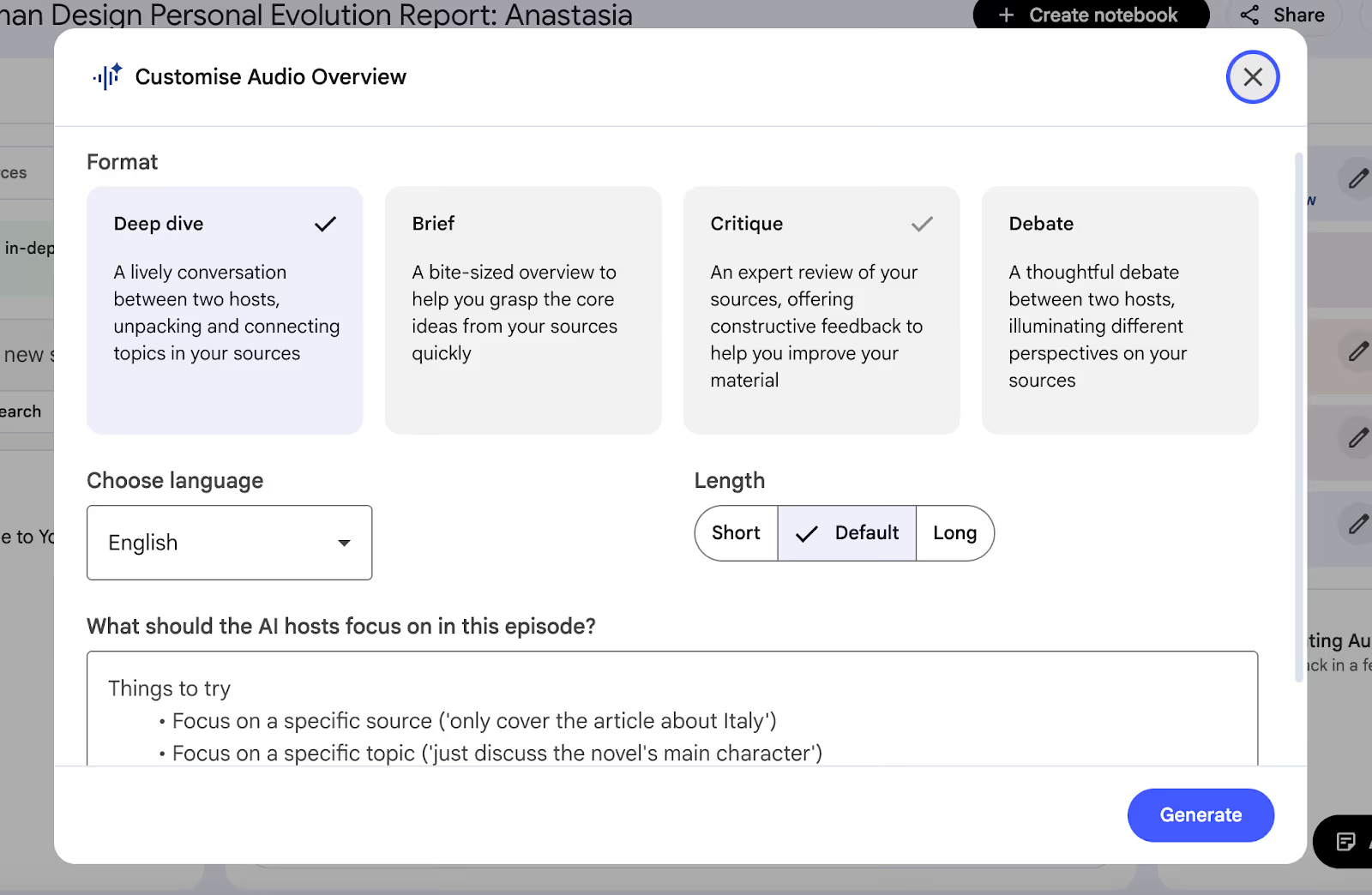
Customising what the audio focuses on
Audio Overviews don’t have to cover everything at once. You can guide the focus by selecting a format and specifying what the conversation should concentrate on, such as summaries, main ideas, or practical takeaways. This makes it useful for learning, quick reviews, and even content reuse.
Using NotebookLM for work and creative projects
NotebookLM has a lot of practical applications aside from helping you learn things faster. Let’s have a look at how you can use it for work and your personal projects.
Researching topics and clients
You already know NotebookLM is great for all kinds of research, especially if you’re pulling your information from several sources. You can upload background reading, articles, reports, or client materials into a single notebook and ask focused questions without jumping between tabs or notes. It makes it easy to compare and really understand things, regardless of how niche your subject matter is.
When I am working on a project, I add all the relevant source material to a notebook — this includes ancient astrological texts as well as my own previous writing. From there, I select specific sources to generate the type of content I need. Once NotebookLM creates the draft or audio, I import it into other tools to continue refining it until I have the final product.
{{Ryan Hunt}}
Creative and personal uses of NotebookLM
NotebookLM has broad practical uses that go beyond work, study, or client research, and you can use it for your personal projects too. It works well as a place to collect references and ideas that don’t yet have a clear structure because you can summarise and analyse them at a later date. This could be anything from starting a writing project to exploring a new creative direction. I would argue my astrology-inspired experiment falls into this category.
Best practices for using NotebookLM well
Here are some tips and tricks that’ll help you get the most out of your NotebookLM experience.
Asking clear and specific questions
NotebookLM works best when you are asking focused questions. Instead of something like, “What is [X] about?”, ask “ Where do these documents contradict each other?” or “Summarise the key arguments.”
Experimenting with prompts and formats
Just because concrete questions might work best, it doesn’t mean you shouldn’t try different things. Trying different prompts, formats, and outputs is often the fastest way to understand what it’s actually good at for your own material.
Test the waters. Don't be afraid to push the envelope and really get to know its capabilities—it can likely do more with your data than you expect.
{{Ryan Hunt}}
Understanding the limits of AI output
Even though NotebookLM grounds its answers in your sources, it’s still important to review what it generates critically. If your sources are incomplete or biased, the output will reflect those gaps. This is why NotebookLM works best as a thinking partner rather than a final authority.
The biggest mistake is treating it like a regular prompt engine (like standard ChatGPT). People often miss that the real power of the tool comes from integrating and grounding the AI in your specific sources.
{{Ryan Hunt}}
A few parting words
So, that’s all there is to getting started with NotebookLM. It’s a fantastic tool for research, and it allows you to see your sources and data in new ways, from flashcards to audio conversations. Like every AI tool, it’s not without its limitations, and it still needs human discernment to produce the best results.
FAQ
How is NotebookLM different from ChatGPT?
Even though they are both AI-based, they are pretty different. NotebookLM only works with sources you provide, unlike AI chat tools, which generate responses based on general knowledge. This makes NotebookLM better suited for research and study, whereas ChatGPT is more flexible for things like brainstorming and general questions.
What happens if my sources contradict each other?
If your sources contradict each other, NotebookLM will tell you so instead of smoothing it over. This is actually something you can ask it to do for you, with a simple prompt like “Can you highlight the contradictions in my sources?”
How do AI-suggested questions work?
The first AI-suggested questions you’ll see are generated based on the sources you upload. After that, as you continue talking to NotebookLM in the chat window, it’ll recalibrate them to the trajectory of your conversation. You don’t need to use them at all if you don’t want to.
.avif)



I’m a bilingual writer and content strategist working across SaaS and digital media. I cover topics like marketing, tech, and the occasional niche curiosity.
Learn moreI am the Founder and CEO of Cyber Infrastructure (CIS), where I focus on agile and resilient enterprise-wide digital transformations and AI implementation strategies for global enterprises. Bridging the gap between complex tech and measurable outcomes through scalable software engineering.
I’m a coach, astrologer, researcher, and content creator (YouTube/Substack).
We are here to ease your working routine
Whether you're freelancing or a full-time contractor, we simplify the working process, putting you in control.
Try it free
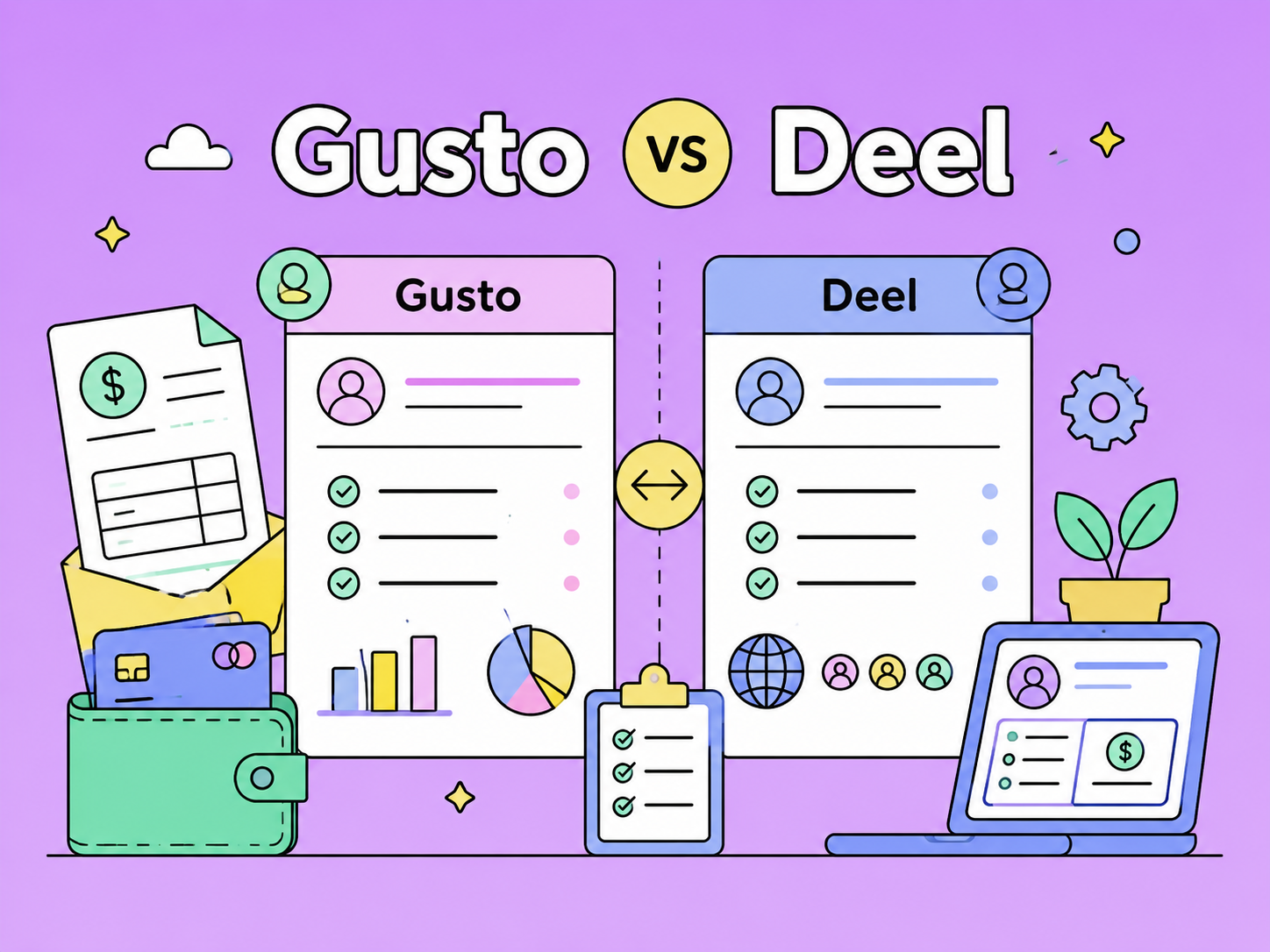
Gusto and Deel both help companies manage payroll and HR, but they serve different business needs. Gusto is a better fit for US-based small and midsize businesses that need simple payroll, tax filing, benefits, onboarding, and basic HR tools. Deel is better for companies hiring internationally, managing global contractors, or using Employer of Record services. This comparison breaks down their key differences in payroll, compliance, pricing, integrations, benefits, contractor management, pros and cons, and best use cases to help businesses choose the right platform in 2026.

Compare the best Deel alternatives for global hiring, payroll, EOR, and contractor payments. See pricing, coverage, pros, cons, and best use cases.

Running payroll for one employee still means tax calculations, filings, forms, and deadlines — so the cheapest option isn't always the best value. This guide compares affordable payroll services for a one-person business, breaking down real monthly costs, what's included, and which choice fits how you actually pay your worker.
